Skip to content
Desk setup inspirations with practical notes

Modern workspace inspiration for keyboard creators

This library highlights real-world setup patterns that help you type comfortably and keep tools organized. Each theme includes a simple checklist so you can apply ideas without chasing trends or buying unnecessary accessories.

Ergonomics first

Comfort and reach zones before aesthetics and lighting.

Clean cable flow

Routing that makes cleaning and moving devices easier.

Coherent palette

A few repeatable colors across keycaps, mat, and lighting.

modern minimalist desk setup with mechanical keyboard custom keycaps and soft neon accent lighting
Subtle accents, readable surfaces, and maintainable organization

Inspiration should be usable. We focus on choices that improve everyday flow: where tools live, where cables route, and how lighting supports focus.

Practical checklists

Small steps that make your desk easier to live with.

Calm aesthetics

A modern look without visual clutter or noise.

Inspiration themes

These themes are meant to be mixed and matched. Treat them as reference points: pick one improvement for comfort, one for organization, and one for visual coherence. If you want deeper hardware context, the related guides explain keycap profiles, switch feel, and maintenance routines that support each setup.

Graphite minimal

A low-reflection palette with matte surfaces and one accent color. Great for long typing sessions because it keeps contrast consistent and reduces visual distraction around the keyboard and monitor.

Checklist

  • Choose two neutrals (charcoal, slate) and one accent (emerald or sky).
  • Use a desk mat to define the typing zone and protect keycaps during swaps.
  • Keep tools in a shallow tray so parts stay visible and easy to return.
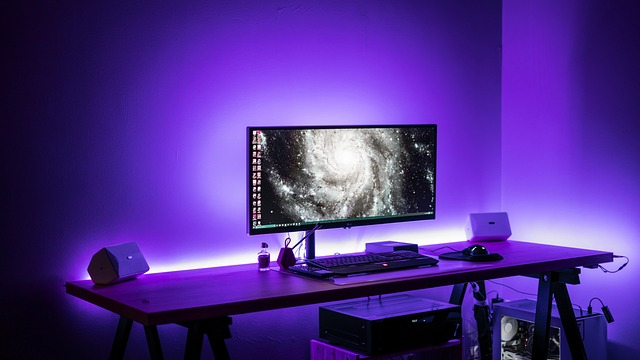
graphite minimalist desk setup mechanical keyboard with neutral keycaps and clean cable management

Soft neon accents

A small amount of color used intentionally: backlight glow, a keycap accent row, or a desk lamp behind the monitor. The goal is clarity and mood without turning your desk into a bright light source.

Checklist

  • Place bias lighting behind the monitor to reduce contrast fatigue.
  • Pick one accent color and repeat it in two places only.
  • Use warm-to-neutral white for task lighting to keep legends readable.
desk setup with subtle neon accent lighting mechanical keyboard and organized accessories

Ergonomic typing zone

A layout focused on posture and reach. The keyboard sits centered with the primary monitor, the mouse stays within a relaxed shoulder width, and frequently used tools are placed in the front reach zone.

Checklist

  • Align keyboard to the main monitor and keep wrists neutral.
  • Set chair height so elbows are near 90 degrees while typing.
  • Use a consistent angle: flat, a low incline, or a gentle tenting if supported.
ergonomic desk setup with centered keyboard neutral wrist position and organized typing area

Tool ready DIY corner

A compact area that supports small keyboard tasks like swapping caps, brushing dust, or tuning stabilizers. This theme is about reducing friction by keeping essentials within reach and easy to put away.

Checklist

  • Store a keycap puller, brush, and microfiber cloth together.
  • Use a small parts container so screws and stabilizer pieces do not wander.
  • Keep a clean surface or mat dedicated to disassembly and reassembly.
diy keyboard customization tools organized in tray with keycap puller brush and parts container

Apply inspiration responsibly

A setup can look great in a photo and still be hard to use day to day. This section provides practical decision rules so your workspace stays clean, safe, and adaptable. The goal is repeatable comfort, easy maintenance, and a clear workflow for learning keyboard customization.

Plan for cleaning

Choose surfaces and storage that make it easy to wipe down weekly. If a setup is hard to clean, dust collects around switches and under keycaps, and the desk starts to feel busy.

If you want a routine, see our maintenance guides for safe steps and recommended tools.

Explore maintenance guides

Keep cables serviceable

Route cables so you can unplug devices without moving the whole desk. Leave gentle slack near ports, and avoid tight bends that put strain on connectors.

A clean cable path supports workshops too, because you can move a keyboard for changes and testing.

See workshop formats

Support readability

Ensure key legends and screen text remain readable under your lighting. If you use low-contrast keycaps, compensate with better task lighting rather than increasing brightness everywhere.

We recommend changes that preserve clear contrast and reduce glare.

Read common questions

Document your setup

Keep a short note of what you changed: keycap profile, switch type, stabilizer tweaks, and desk positioning. Documentation helps you reverse changes and learn what genuinely improved comfort.

If you need a template, message us and we can share a simple checklist.

Contact us
organized desk with keyboard and labeled storage for tools cable clips and cleaning cloths

A good setup is easy to maintain: tools have a home, cables are accessible, and the typing area stays clear for daily use.

Ready to translate inspiration into a build plan?

Use inspirations as a blueprint, then learn the fundamentals that make a setup feel consistent. Guides cover switches and keycaps, while workshops walk through safe, reversible steps for cleaning and basic tuning.